


What is PHP upload limit?
The PHP upload limit refers to the maximum size of files that can be uploaded through a PHP script. This limit is controlled by the upload_max_filesize directive in the php.ini configuration file. The default value is often set to 2 megabytes, but it can be adjusted to accommodate larger files if needed. Keep in mind that there's also the post_max_size directive, which should be equal to or larger than upload_max_filesize to ensure that the entire POST request, including file uploads, fits within the allocated size. If you're dealing with file uploads in PHP, it's essential to check and potentially adjust these settings to meet your application's requirements.
At MYFT | Cloud, we have set a default limit of 2GB for each client website. Of course, you can easily change it and anyone can do it. Below you will find a short tutorial on how to do it.
How to change PHP upload limit?
- In our control panel hub.myft.cloud go to the website where you want to change PHP upload limit.
- Then in the top menu select "Advanced" and then "Developer tools".
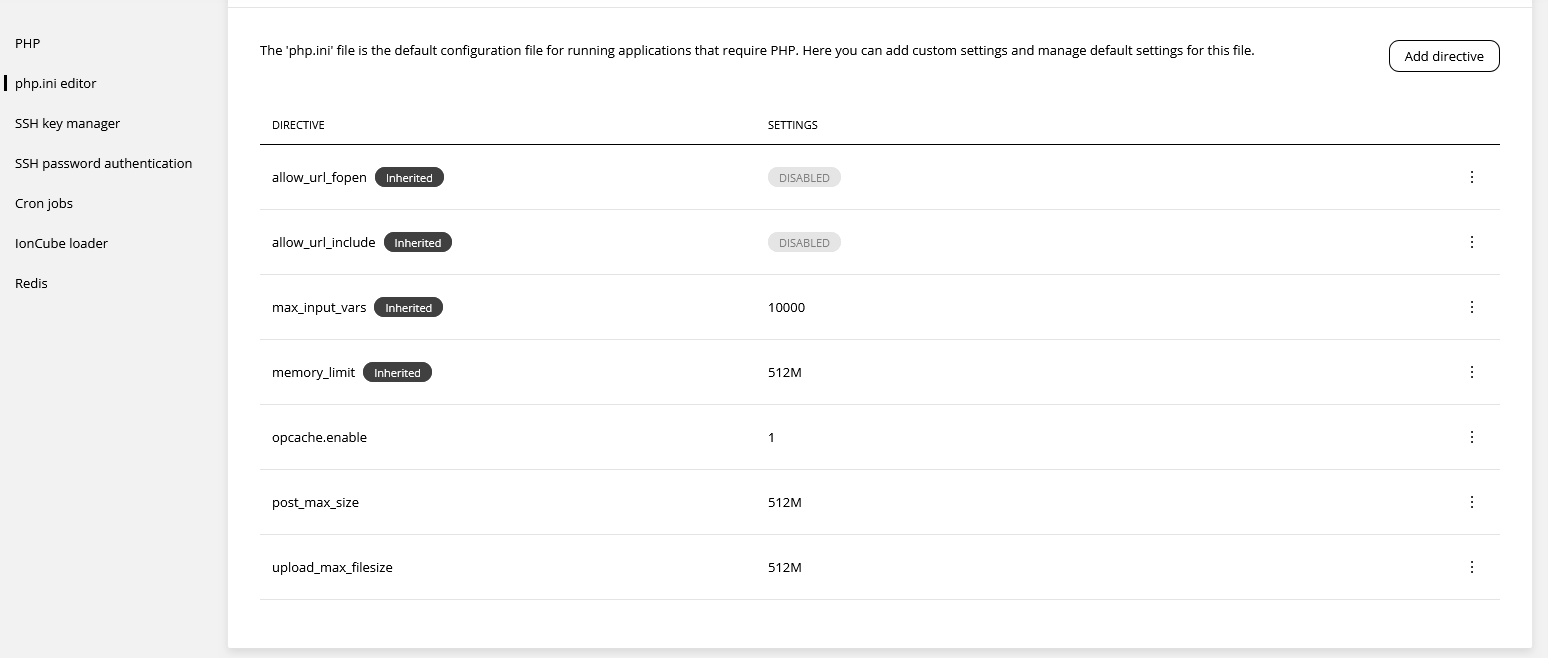
- Go to the "php.ini editor" submenu and add click on the variable you want to change.
Here is an example of how to reduce the upload limit to 512MB:
upload_max_filesize = 512M
When changing each variable, simply click on the "Save" button.
How to check if PHP Upload limit has been changed correctly and active?
The easiest and simplest way would be to check the changes in "Site health". Log in to your WordPress website. In the main menu select "Tools" tab, then "Site health" and select the "Info" tab. In the additional tab "Server" you will find data about the current settings of "Upload max filesize" and "PHP post max size".
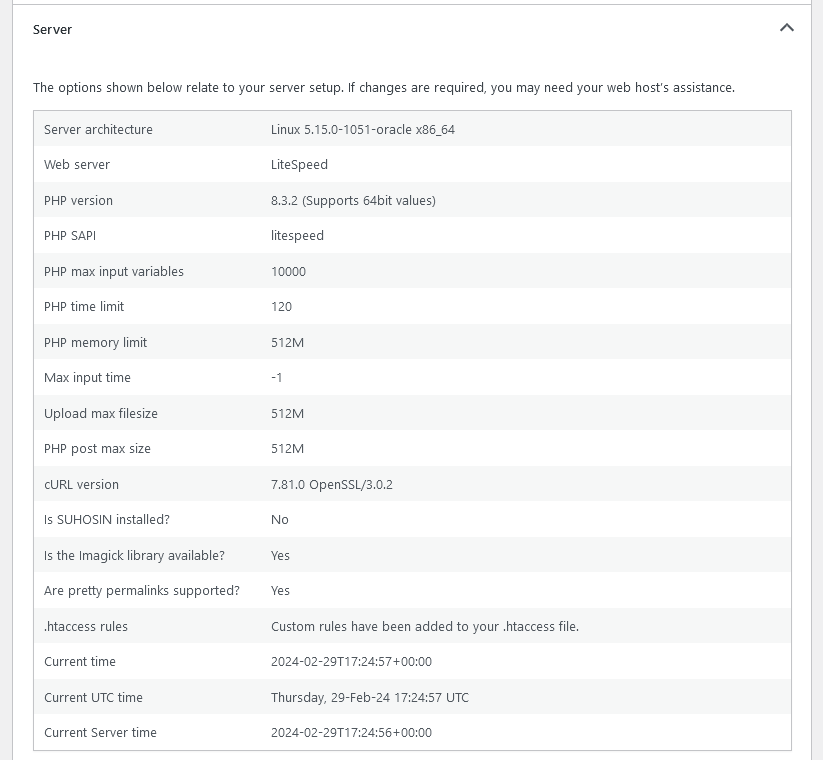
As you can see in the image above, the PHP upload limits have been changed to 512M from the default 2G.
Congratulations. You just changed the PHP Upload limit for your website.
If you encounter any problems with change PHP settings for your WordPress website contact us and we will assist you as soon as possible.
Kindly regards!
Adam Makowski – CEO & Founder MYFT | Cloud

